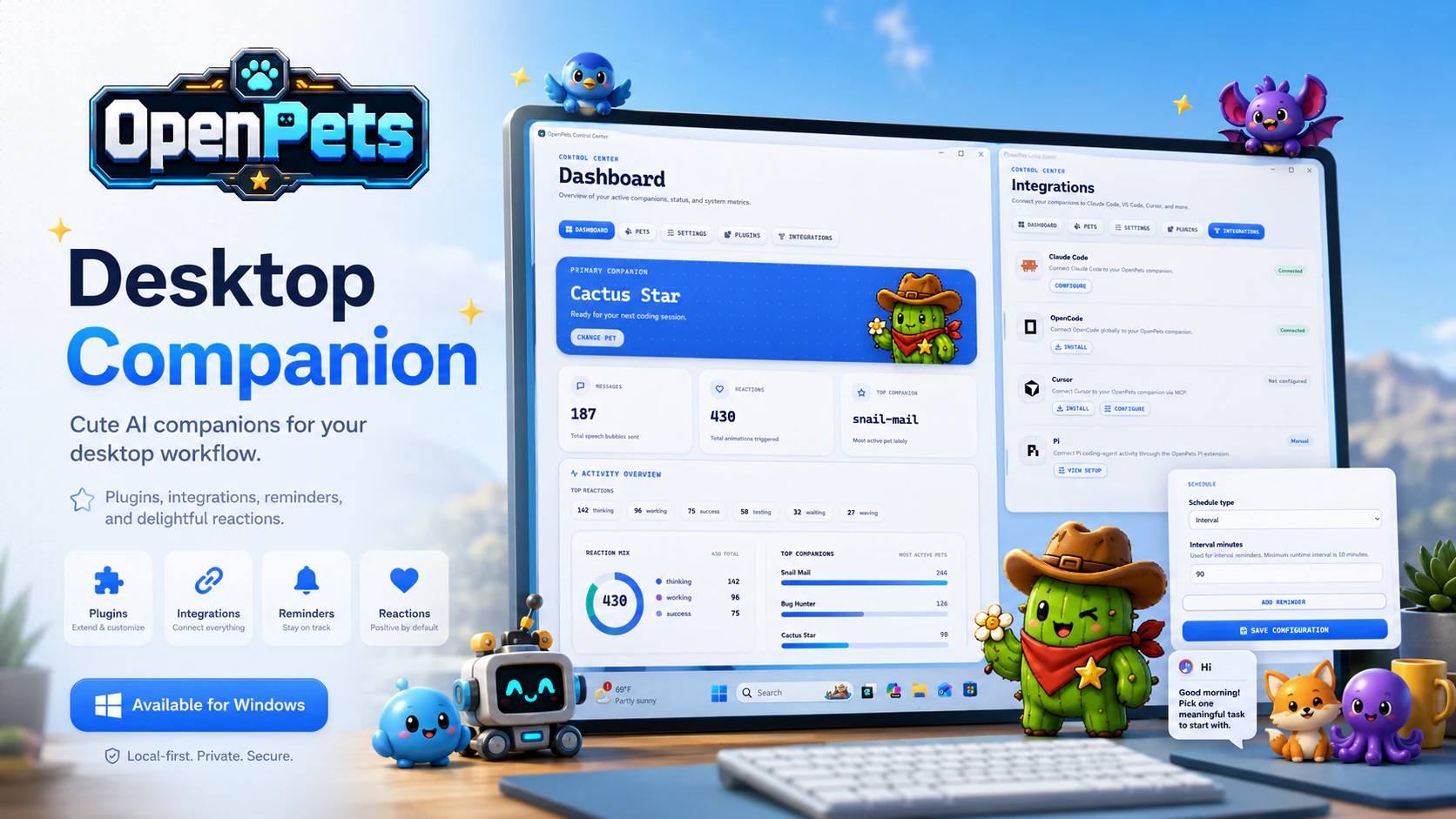
Windows Architecture Overview
Native Windows Desktop Companion Engine
OpenPets for Windows combines hardware-accelerated sprite rendering with transparent Win32/DirectX window overlays. Designed from the ground up for low resource usage, the application sits unobtrusively in your system tray while serving as your central hub for desktop pets, health reminders, and AI coding reactions.
Centralized Control Center
Manage active pets, switch companions on the fly, adjust pixel scaling (1x to 4x), set opacity, and control walking boundaries across multiple monitors.
Sandboxed Plugin Runtime
Run official plugins directly inside OpenPets in an isolated JavaScript runtime. Includes Pomodoro timers, stretch prompts, and hydration reminders.
Local Agent & MCP Ports
Connect Claude Code, OpenCode, Cursor, and custom terminal CLI commands via standard local MCP ports or stdio channels with zero cloud dependencies.
Native Windows Performance
Lightweight background binary engineered for Windows 10 and 11, consuming under 35 MB of RAM and minimal CPU while sitting quietly in the system tray.
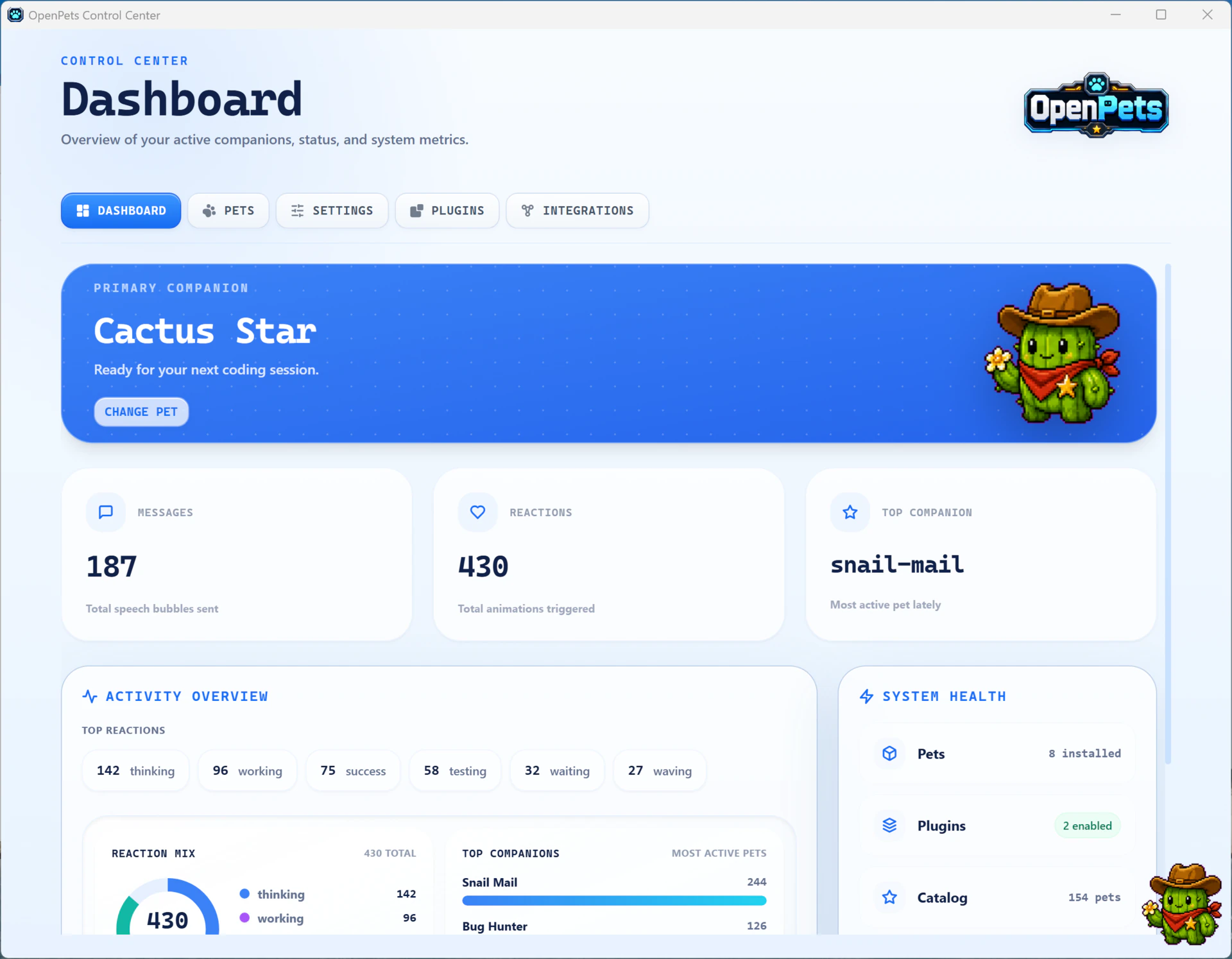
Control Center & System Dashboard
The Control Center serves as the primary management interface for OpenPets on Windows. From this single dashboard, you can browse your companion library, configure display bounds, manage sandboxed plugins, and link external AI tools.
Live Desktop Companion Demo
Watch OpenPets in motion on the Windows desktop. The companion walks along taskbars and active window borders while responding to local system events:
Control Center Walkthrough
Step-by-Step Control Center Tour (Concepts 01–06)
Explore every screen of the OpenPets Control Center on Windows. Each section below highlights a specific concept, paired directly with high-resolution interface captures.
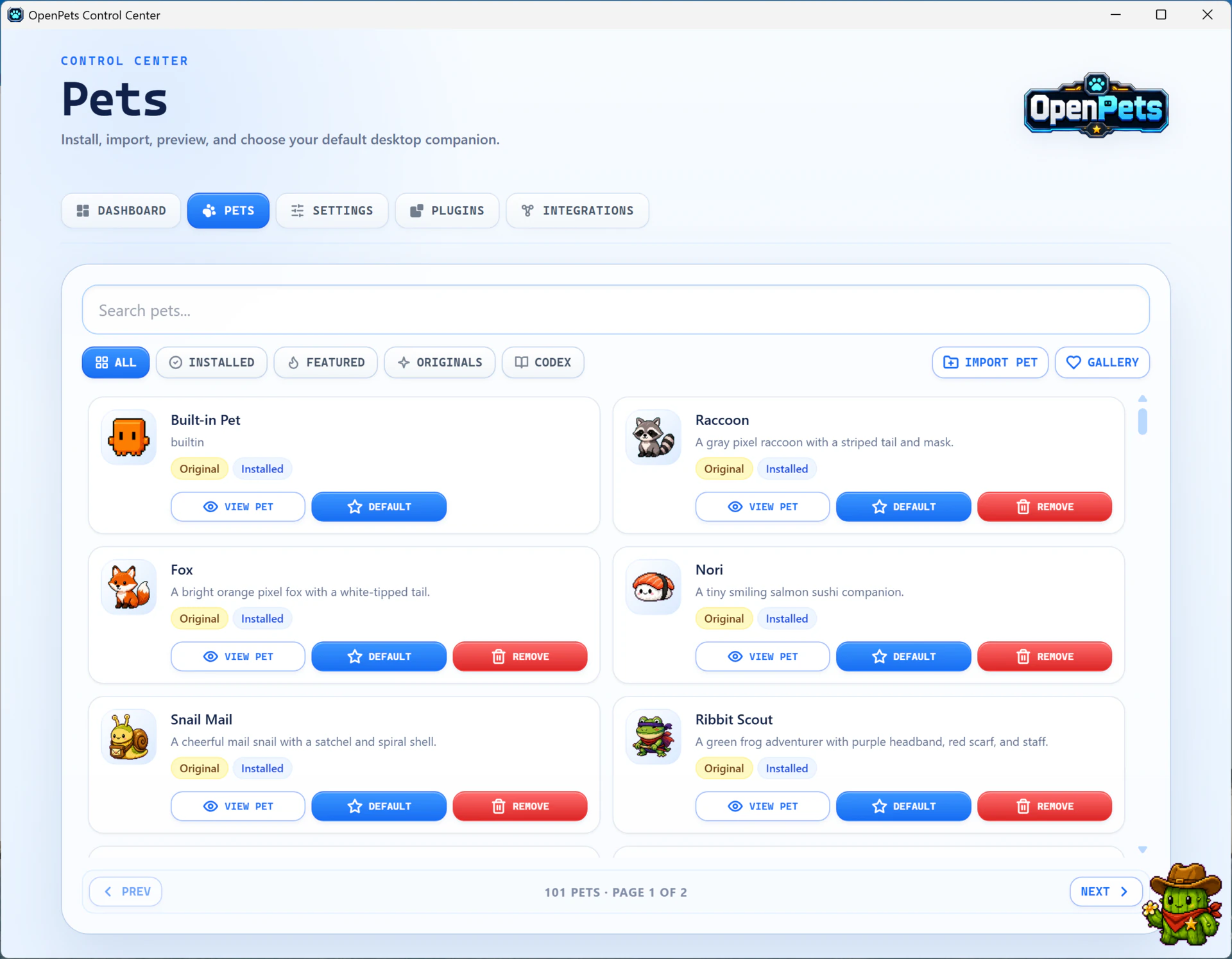
Pet Roster & Catalog Selection
Browse the full local catalog of animated companions, search and filter pets, and choose the default companion that greets you on startup.
Key Capabilities
- Search and filter across 100+ local pets with Installed, Featured, Originals, and Codex collections.
- One-click View Pet, Default, and Remove actions on every companion card in the roster.
- Import Pet loads custom local pet packages (.zip) straight into your library.
OpenPets supports custom local pet packages (.zip packs) installed directly into your local library folder.
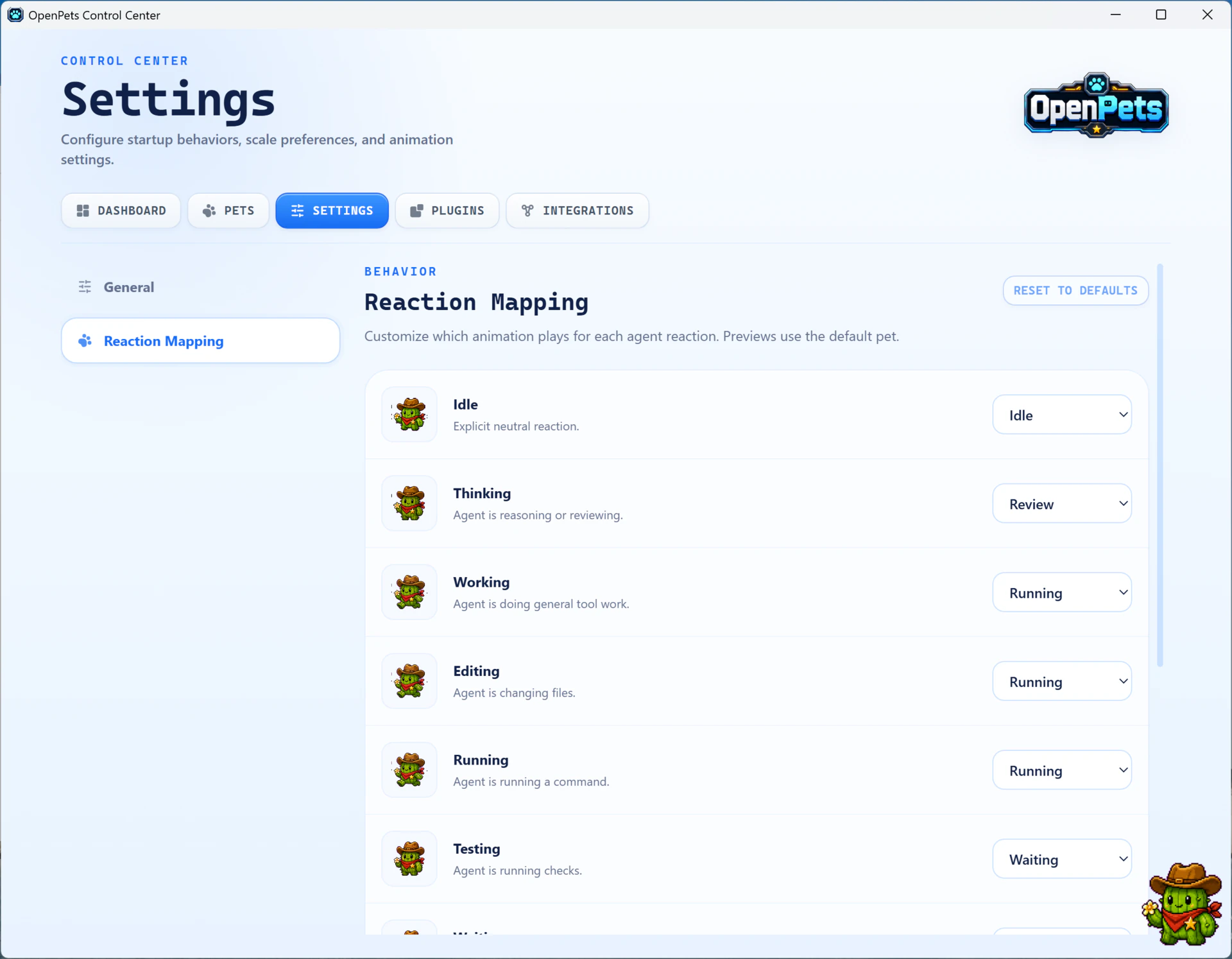
Reaction Mapping & Behavior Settings
Customize which animation plays for each agent reaction, alongside startup behaviors, scale preferences, and animation settings.
Key Capabilities
- Map agent reactions (Idle, Thinking, Working, Editing, Running, Testing) to any pet animation.
- Live animation previews use your default pet, so you see each mapping before it goes live.
- One-click Reset to Defaults restores the stock reaction mapping at any time.
Reaction mapping applies globally: every connected AI tool triggers the same animation vocabulary across all active pets.
Sandboxed Plugin Manager
Enable, configure, and install lightweight sandboxed plugins that add automated behaviors and reminders to your companions.
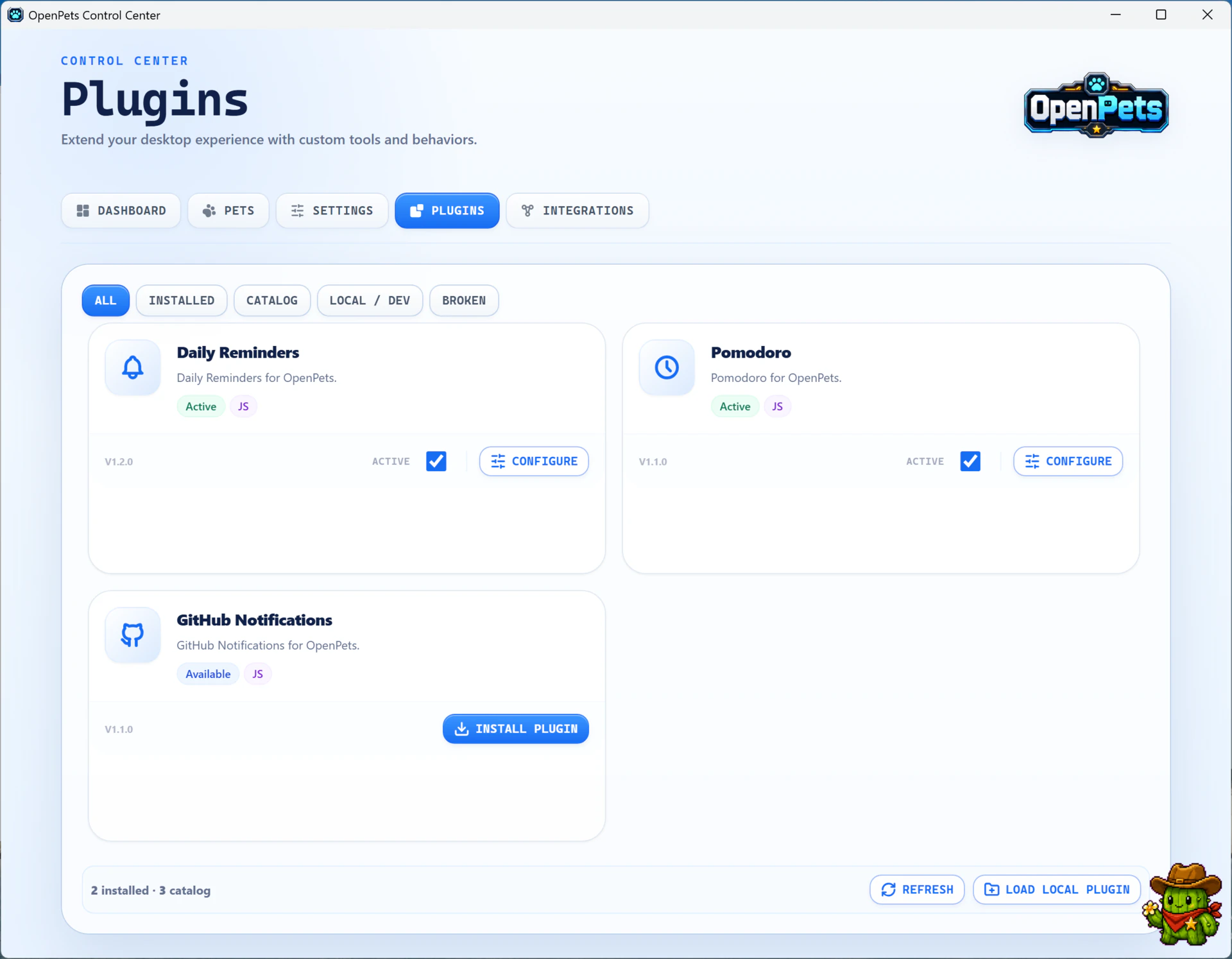
Key Capabilities
- Secure JavaScript sandbox preventing unauthorized filesystem or network access.
- Built-in catalog with Daily Reminders, Pomodoro timers, and GitHub Notifications, installable in one click.
- Local / Dev filter and Load Local Plugin support for community plugins under development.
Plugins run inside an isolated sandbox and communicate with pets strictly through verified event emitters.
AI Tool & Agent Integrations
Connect external AI coding tools from the Integrations tab: install, configure, and verify each connection in one place.
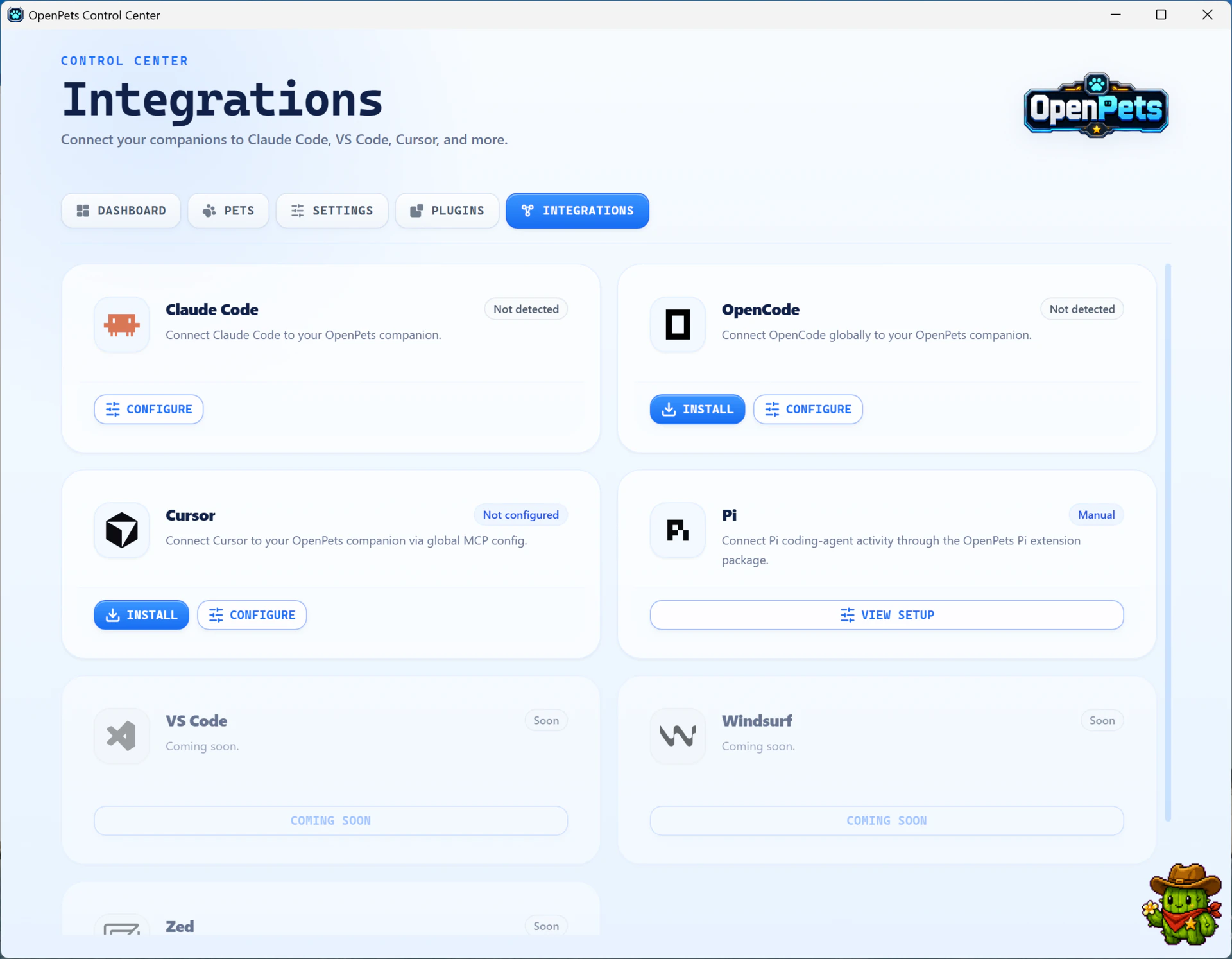
Key Capabilities
- Guided setup cards for Claude Code, OpenCode, Cursor, and the Pi coding agent.
- Install and Configure actions wire each tool to your companions through local MCP configuration.
- VS Code, Windsurf, and Zed integrations are listed as coming soon on the same screen.
All AI communication stays local on loopback (127.0.0.1). No API keys or remote telemetry required.
Break Schedules & Reminders
Configure reminder schedules inside each plugin's configuration panel, from interval timers to instant preview commands.
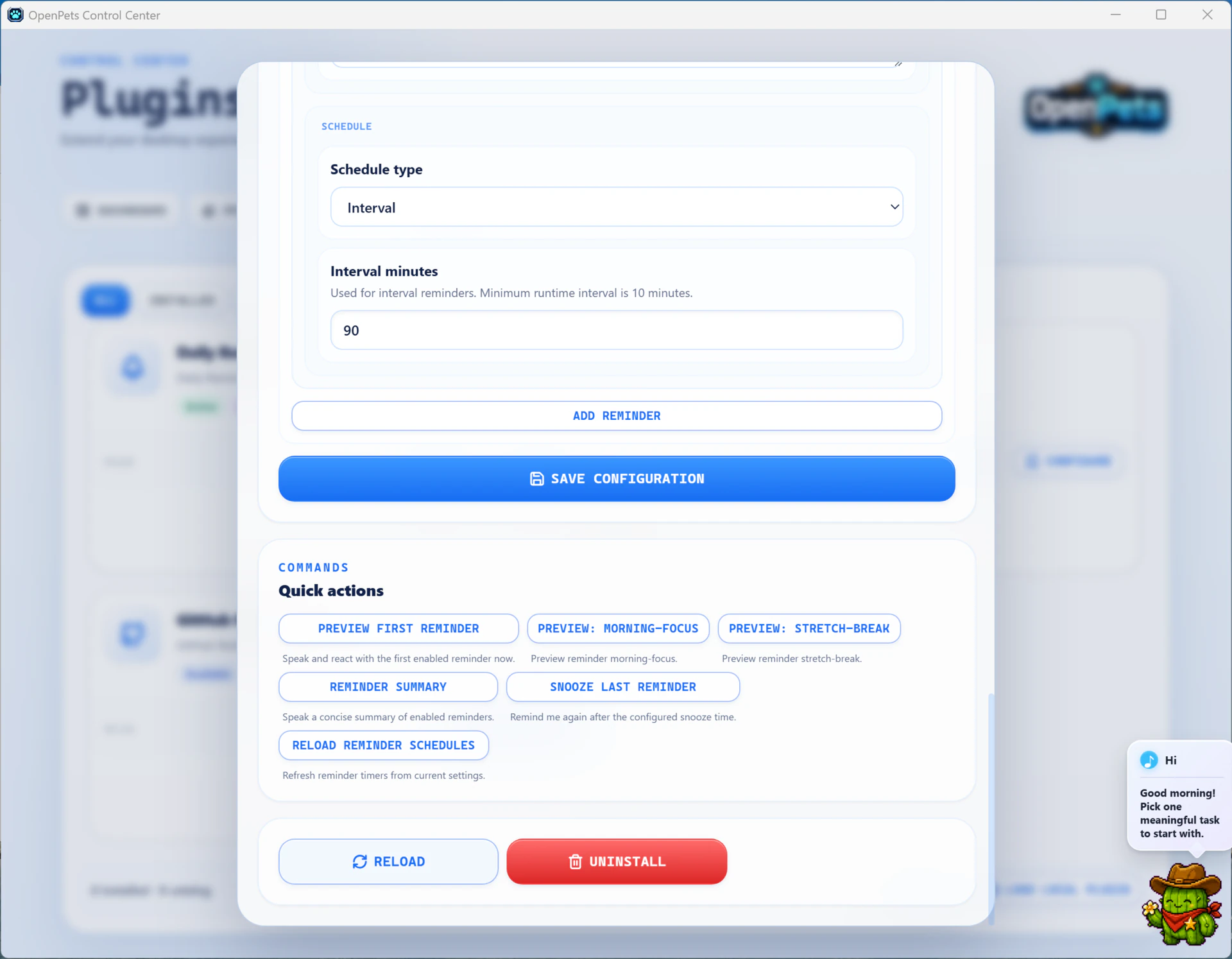
Key Capabilities
- Interval scheduling with configurable minutes between reminders (10-minute minimum runtime interval).
- Quick actions preview the first reminder, morning focus, or stretch break before you save.
- Reminder summary and snooze commands let your companion recap or repeat reminders on demand.
Speech bubble notifications float right above your active pet companion and auto-dismiss after a few seconds.
Companions on Your Live Desktop
With everything configured, your companion lives directly on the Windows desktop, walking above the taskbar and surfacing ambient reminders as pixel speech bubbles.
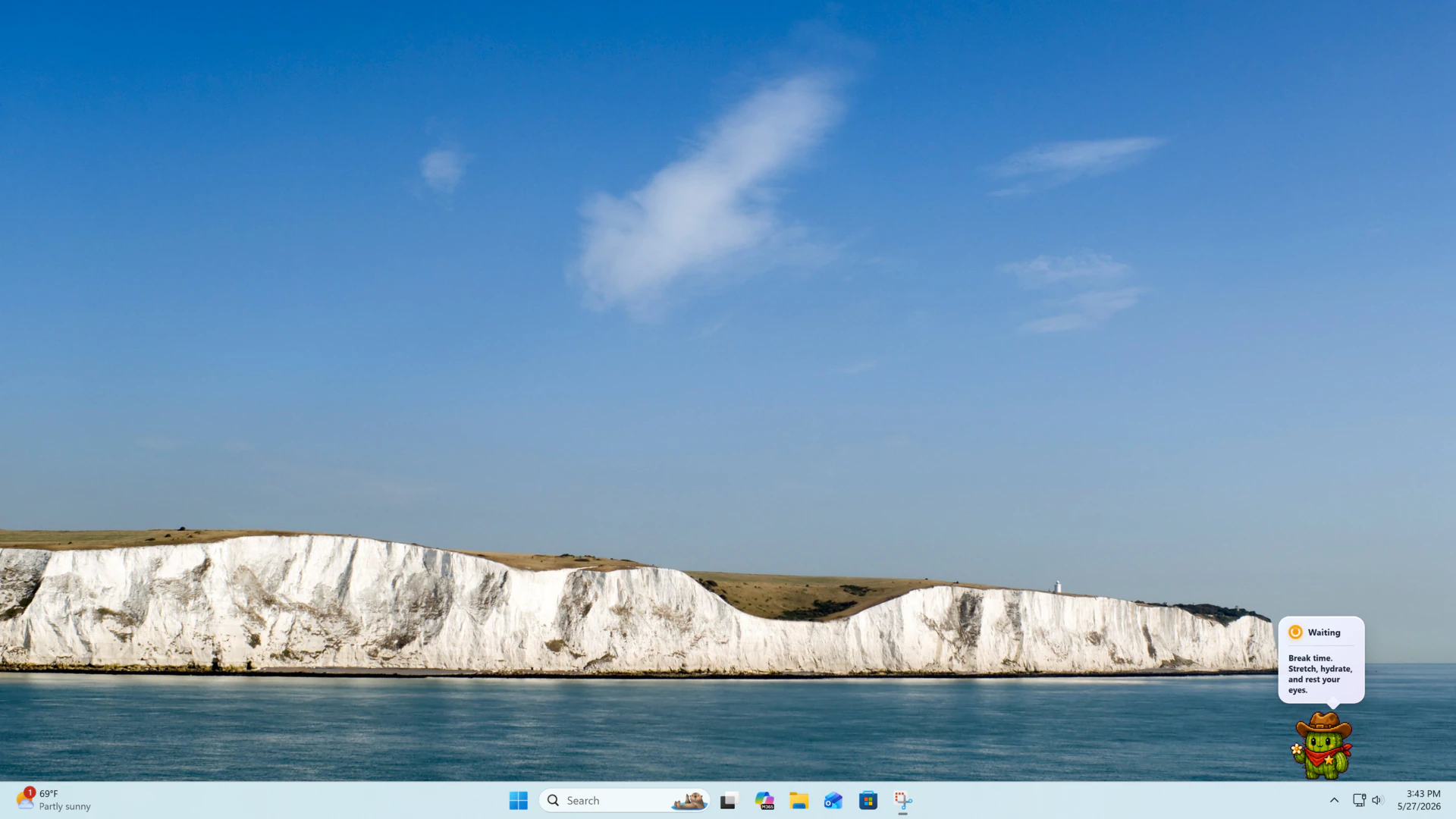
Key Capabilities
- Companions render above the Windows taskbar and roam across your open application windows.
- Ambient speech bubbles deliver break reminders (stretch, hydrate, eye rest) without stealing focus.
- Smooth sprite animation with negligible CPU impact, even during long coding sessions.
You can run up to 10 companions simultaneously with negligible impact on system performance.
Plugins, Reminders & Dashboard Setup
The OpenPets Dashboard gives you granular control over background services, extension loading, and automated health checks.
Plugin Architecture & Reminders
Plugins run inside an isolated V8/QuickJS sandbox without access to system APIs. Official plugins included out-of-the-box:
- Pomodoro Timer: Syncs pet animation states with 25-minute work blocks and 5-minute rests.
- Hydration & Stretch Alerts: Configurable floating prompts that gently remind you to stand up or take water breaks.
- Custom JS/TS Plugins: Create custom widgets using the OpenPets Plugin SDK v3.
Quick Setup & System Tray Integration
Installation on Windows takes less than 60 seconds with no complex setup needed:
Download Installer
Get the latest OpenPets Windows installer (.exe) from the official download link.
Run Setup Wizard
Double-click the .exe file to complete standard installation. No administrator rights required for local user install.
Launch from Tray
OpenPets launches into your Windows System Tray. Click the tray icon to launch the Control Center.
Link AI Agents
Optionally add OpenPets MCP server to Claude Desktop, Cursor, or OpenCode for live coding reactions.
Actionable Downloads & Integration Links
Ready to get started on Windows? Download the installer or explore related guides below:
to select pixel companions for tool integrations