macOS Architecture Guide
Choosing the Correct Mac DMG Build
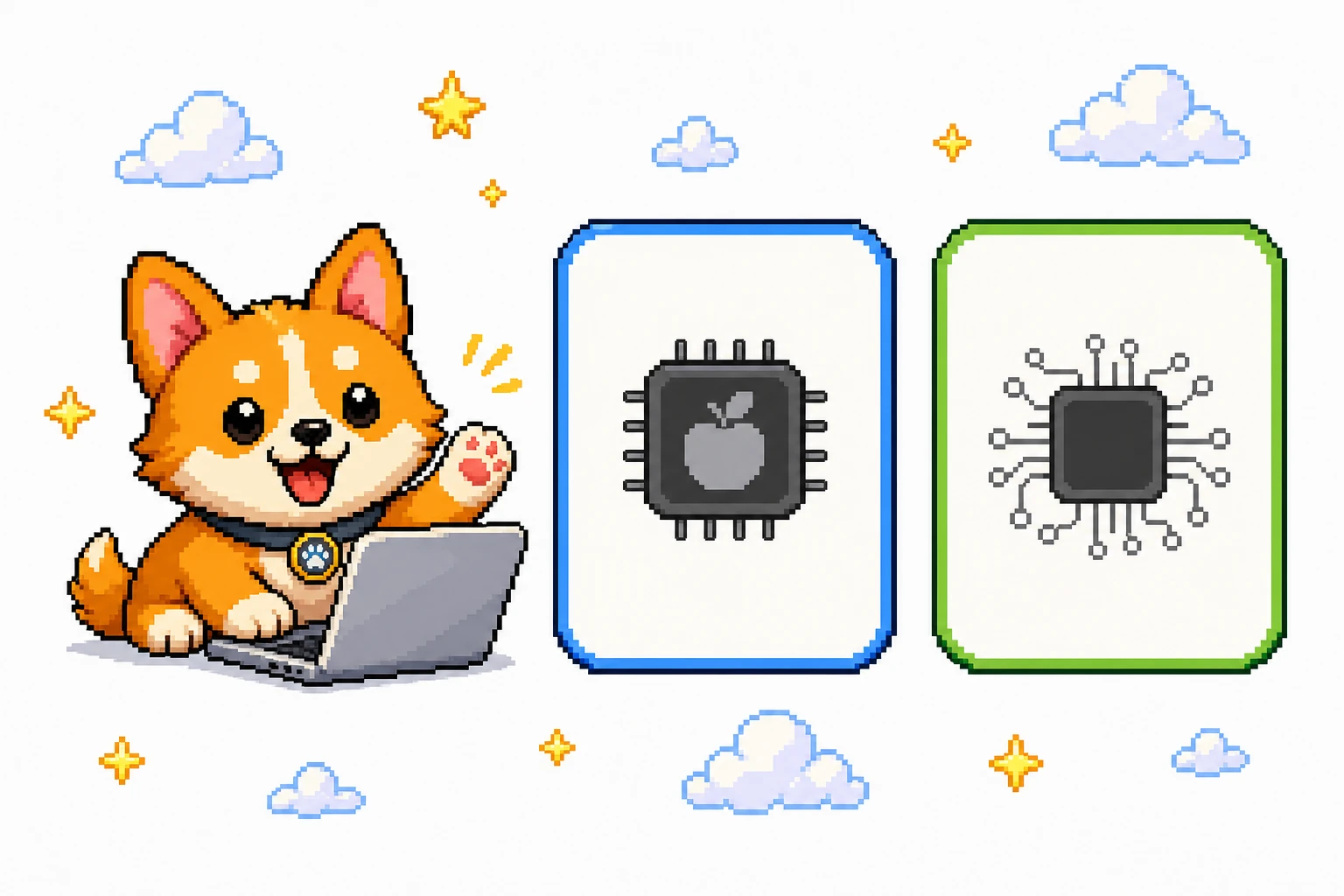
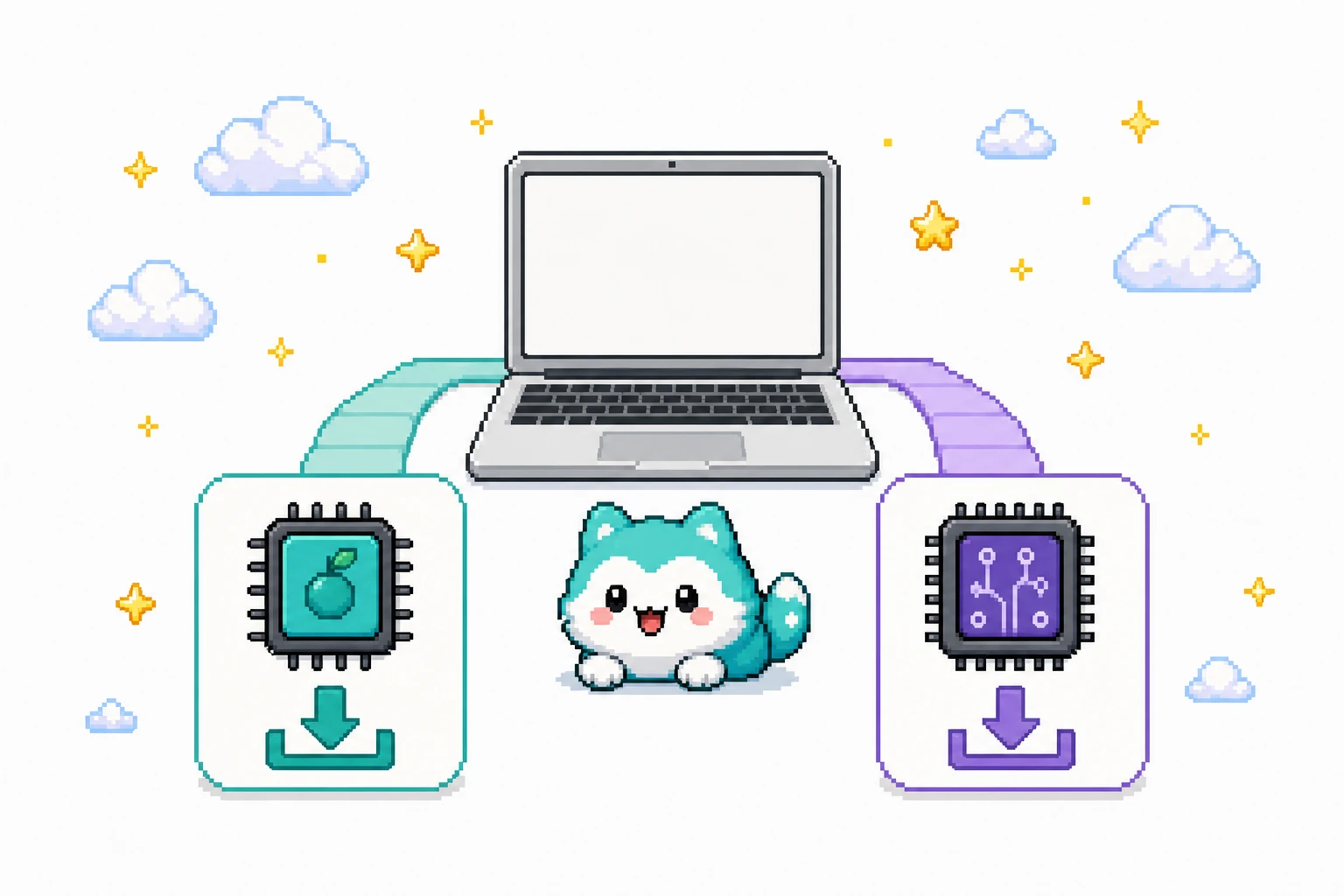
OpenPets releases two distinct native binaries for macOS: an Apple Silicon build optimized for M-series processors and an Intel build for older Mac hardware. Both DMG packages contain a self-contained macOS application bundle with zero runtime dependencies.
| Architecture | Processor Compatibility | Release DMG | Download Link |
|---|---|---|---|
Apple Silicon Recommended | M1, M2, M3, M4 (Base, Pro, Max, Ultra) | mac-arm64.dmg | |
Intel Mac | Intel Core i5, i7, i9, Xeon (2012–2020 Macs) | mac-x64.dmg |
macOS Desktop Companion Architecture
On macOS, OpenPets operates as a status menu app in the top menu bar. It creates lightweight, click-through overlay windows that allow companions to walk freely across your wallpaper, title bars, and desktop icons without stealing window focus.
Live macOS Desktop Demo
Watch OpenPets in motion on macOS. The desktop companion walks on active window borders, reacts to coding events, and provides ambient notifications alongside your work:
Installation & macOS Permission Setup
Follow these four steps to install OpenPets on macOS and grant the required accessibility permissions:
Download Matching DMG
Select Apple Silicon (mac-arm64.dmg) for M-series Macs or Intel (mac-x64.dmg) for older Intel Macs.
Drag to Applications
Double-click the downloaded DMG file and drag OpenPets.app into your macOS /Applications folder.
Grant Accessibility Rights
Open System Settings > Privacy & Security > Accessibility and grant OpenPets permission for desktop roaming.
Access via Menu Bar
OpenPets launches into your macOS Menu Bar. Click the menu icon to open the Control Center.
To walk along the top of active application windows (like VS Code, iTerm2, or Xcode), OpenPets uses the macOS Accessibility API (`AXUIElement`) to read window titles and screen bounds. OpenPets does not record keystrokes, capture screen content, or transmit telemetry.
macOS Companion Features & Control Center
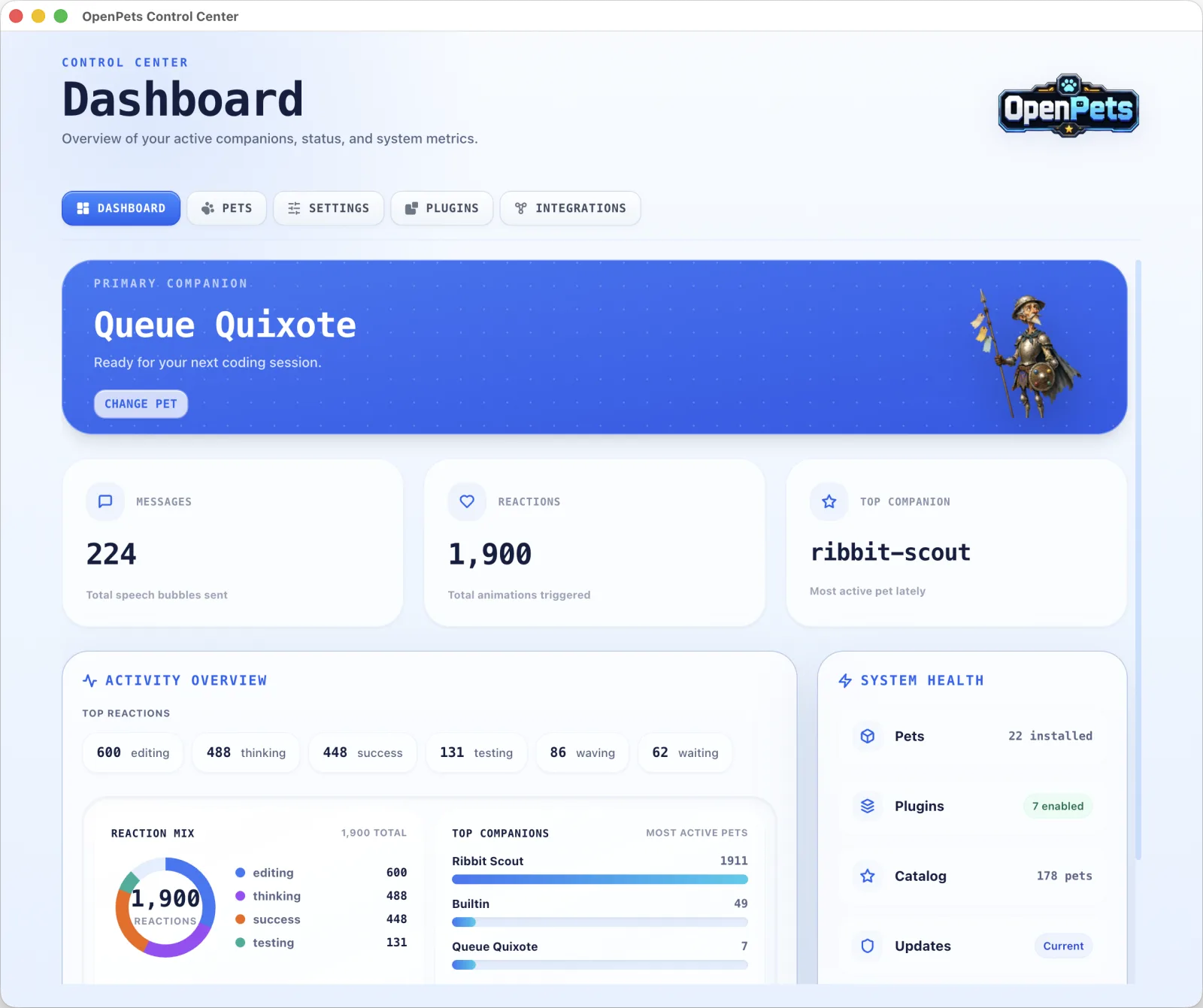
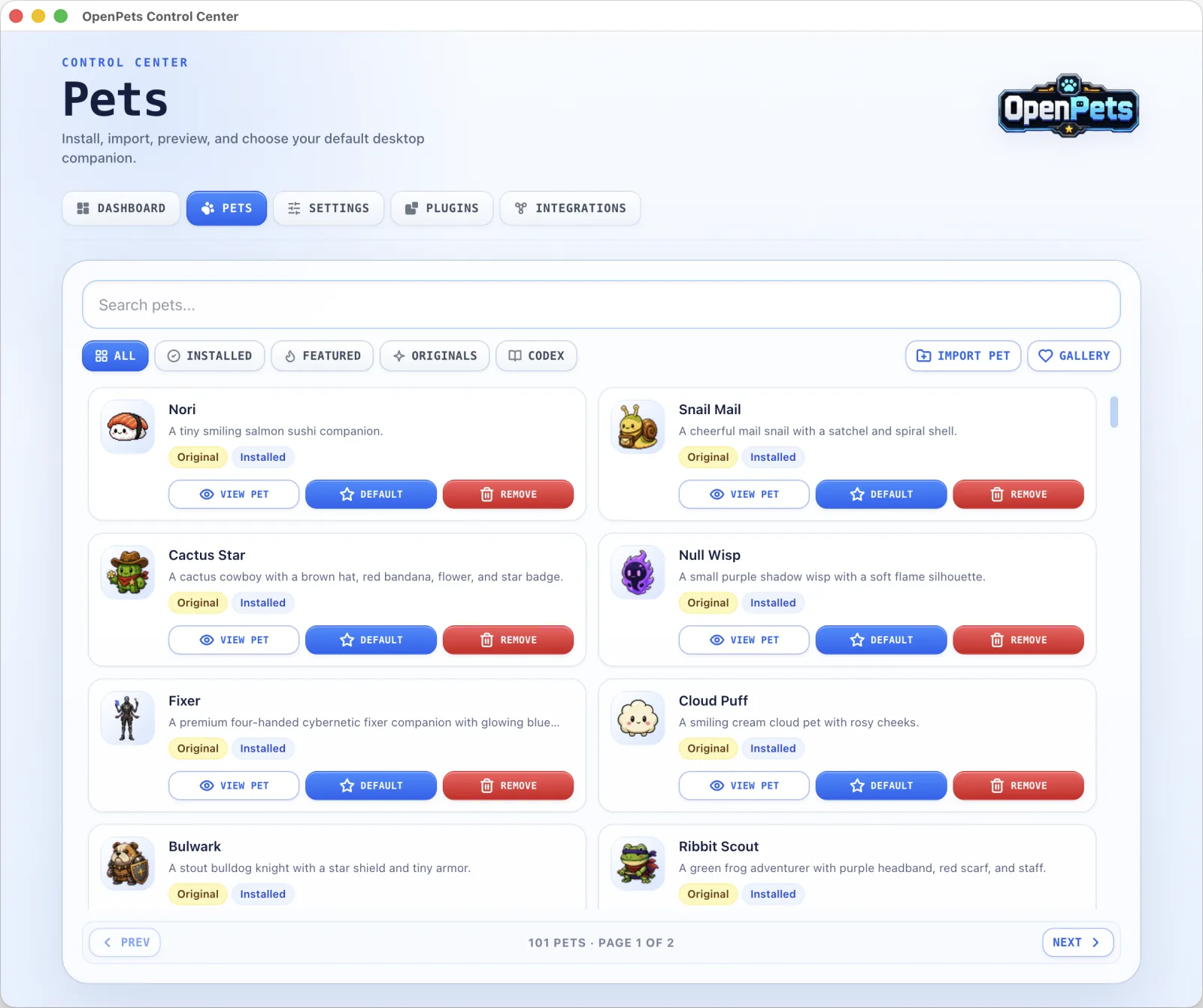
OpenPets includes the complete Control Center interface on Mac, accessible via the top menu bar icon:
macOS Menu Bar Companion
OpenPets runs quietly in the top menu bar (StatusItem). Left-click for quick actions, pet selection, and state toggles without cluttering your Dock.
Title-Bar Window Walking
Using the macOS Accessibility API (`AXUIElement`), pets automatically detect the active window borders of VS Code, Terminal, Safari, and Xcode to walk along title bars.
Spaces & Mission Control
Pets follow your active virtual desktop (macOS Space) seamlessly, staying visible as you swipe between fullscreen IDEs and browser spaces.
Mac Terminal MCP Hooks
Connect Claude Code CLI in Ghostty, Warp, or iTerm2 via standard stdio MCP or local Unix socket (`~/.openpets/openpets.sock`).
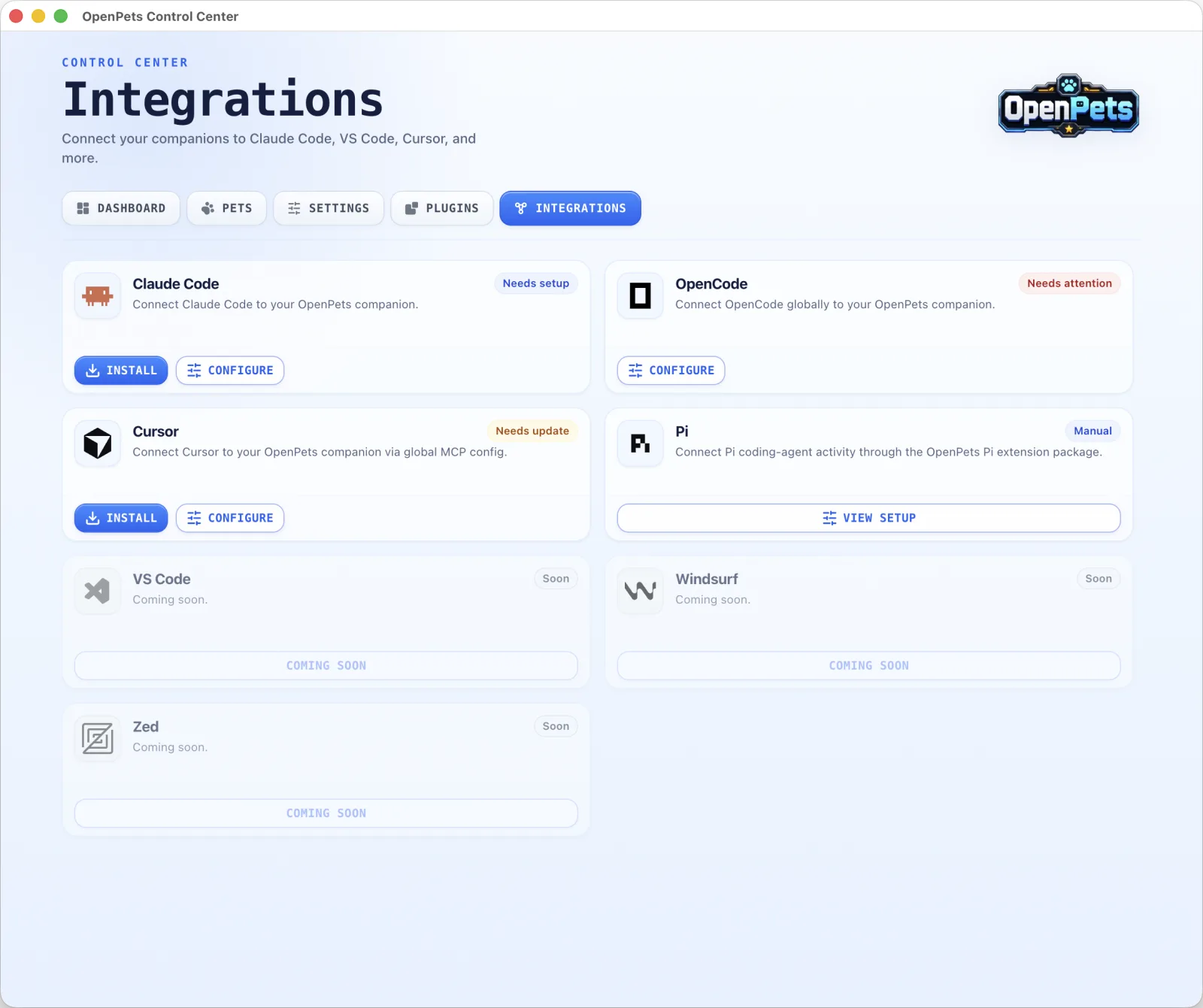
Connecting Mac Terminal Tools (Claude, Cursor, CLI)
Mac developers can connect Claude Code, Cursor, or terminal CLI commands directly to OpenPets. The OpenPets macOS binary includes a built-in MCP server listener.
{
  "mcpServers": {
    "openpets": {
      "command": "/Applications/OpenPets.app/Contents/Resources/openpets",
      "args": ["mcp", "serve"]
    }
  }
}
Once added to your MCP configuration file, Claude Code CLI or Claude Desktop will automatically communicate with OpenPets whenever tools execute in your Mac terminal.