AI Companion Architecture
Lightweight Local Status Client for AI Agents
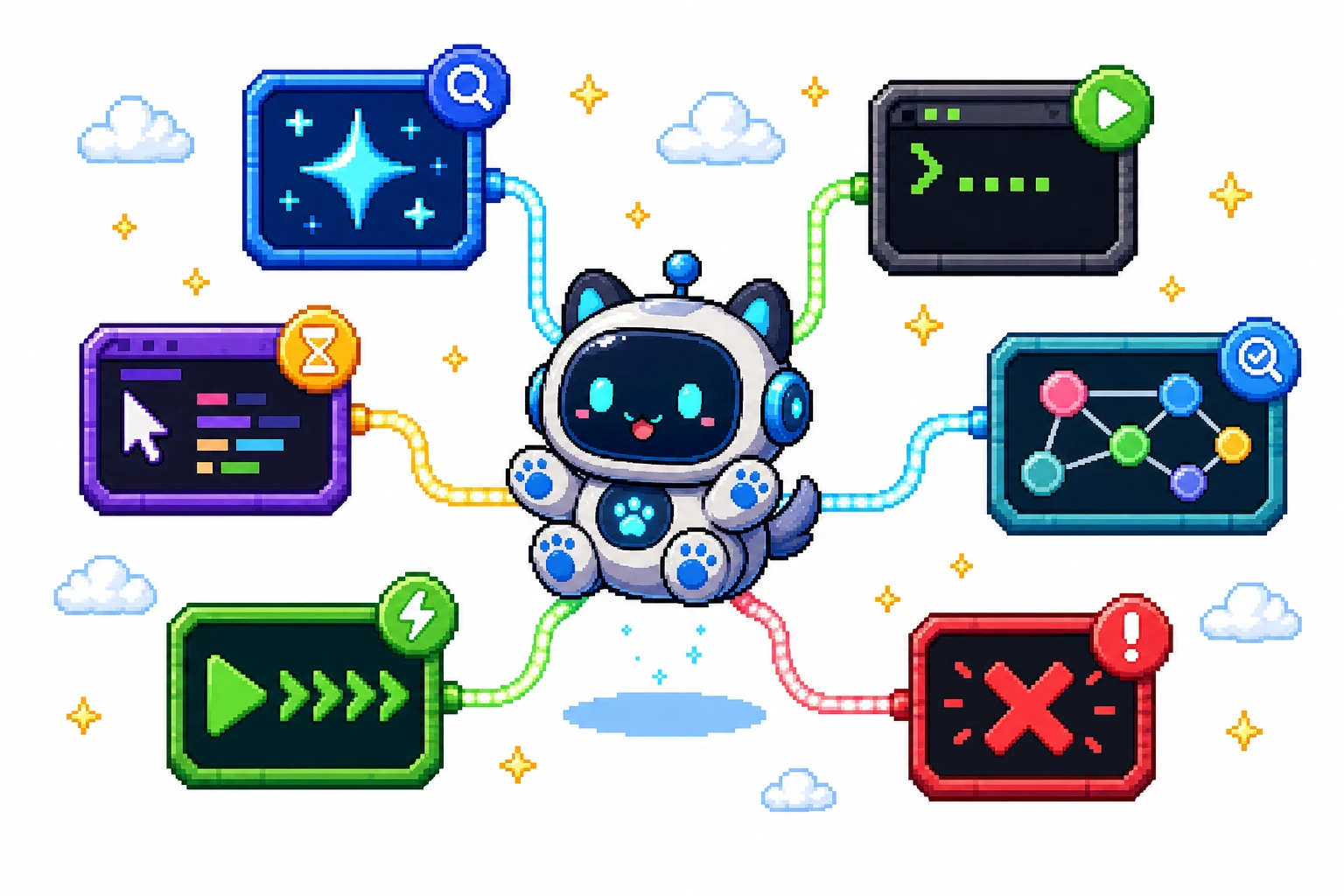
OpenPets is a local desktop companion app designed to display real-time visual reactions while you work with external AI coding assistants. OpenPets does not contain embedded LLMs or heavy AI runtimes. Instead, external AI tools (Claude Code, Cursor, OpenCode) send lightweight status signals to OpenPets via standard Model Context Protocol (MCP) or local CLI commands.
IPC and stdio communication stay strictly on loopback (127.0.0.1). Zero remote telemetry or cloud calls.
No GPU/CPU waste for embedded AI models. OpenPets consumes under 35 MB RAM while listening for tool signals.
Uses Anthropic's open Model Context Protocol over stdio for instant compatibility with modern coding agents.
Connected Developer Environment
By linking OpenPets to your terminal or editor, your desktop companion transforms into an ambient progress monitor. Whether your agent is running long test suites or generating multi-file refactors, your pet reflects the current task state at a glance.

Live Agent Demo Video
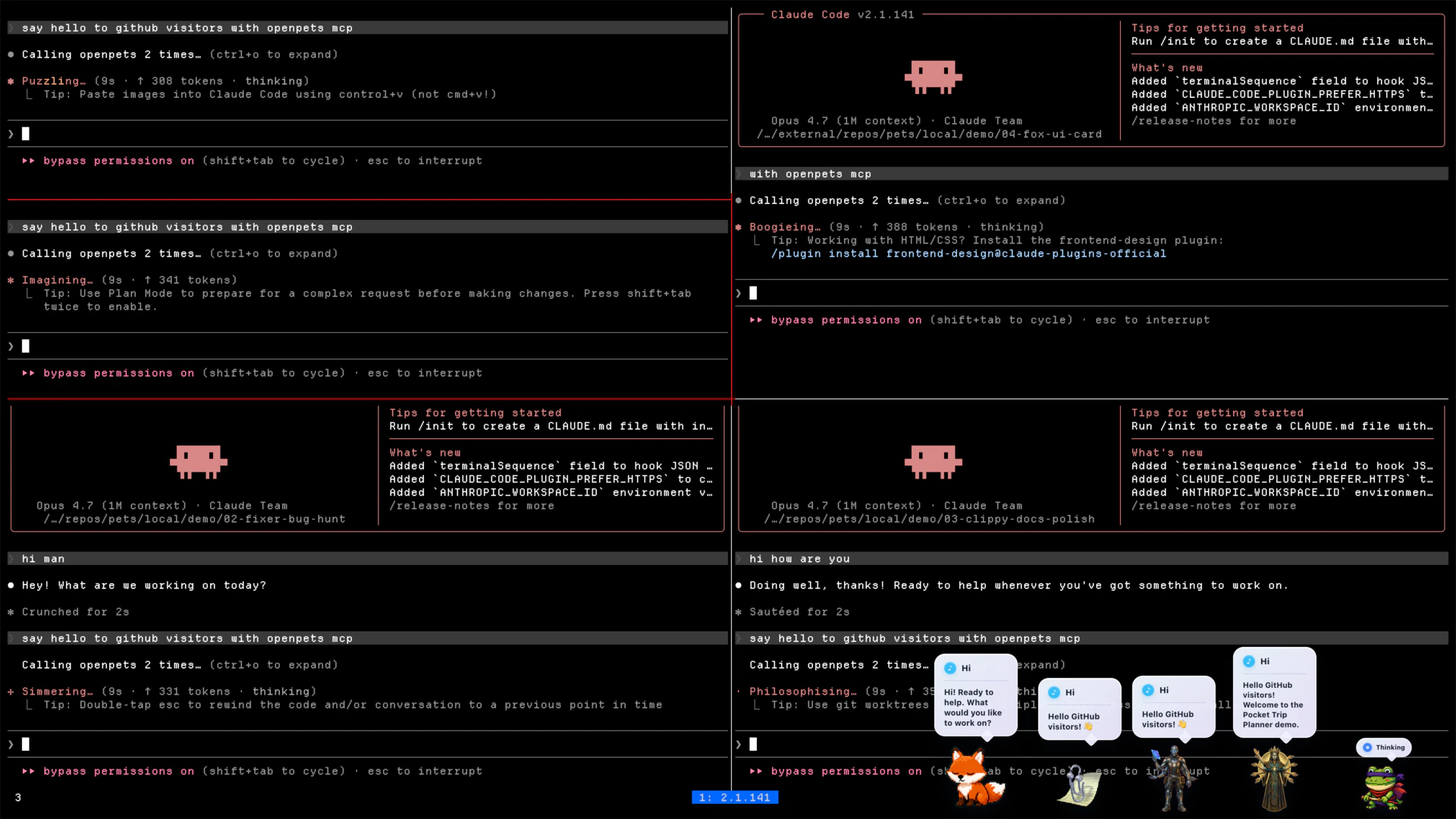
Watch how OpenPets reacts in real time as an AI coding agent processes context, executes terminal commands, and handles errors:
Step-by-Step AI Setup & Execution Workflow
Connecting an external AI assistant to OpenPets takes just a few steps:
Launch OpenPets Desktop Daemon
Open OpenPets on Windows, Mac, or Linux. The desktop process runs locally and exposes stdio/IPC channels.
Add OpenPets MCP Tool Config
Register OpenPets as an MCP server in Claude Desktop, Cursor, or OpenCode configuration files.
Agent Emits State Changes
During tool execution, your AI assistant automatically invokes `openpets_set_state` to change companion postures.
Visual Reactions on Desktop
Pets switch seamlessly between waiting, running, review, and failed states as your coding task progresses.
Claude Code Terminal Integration
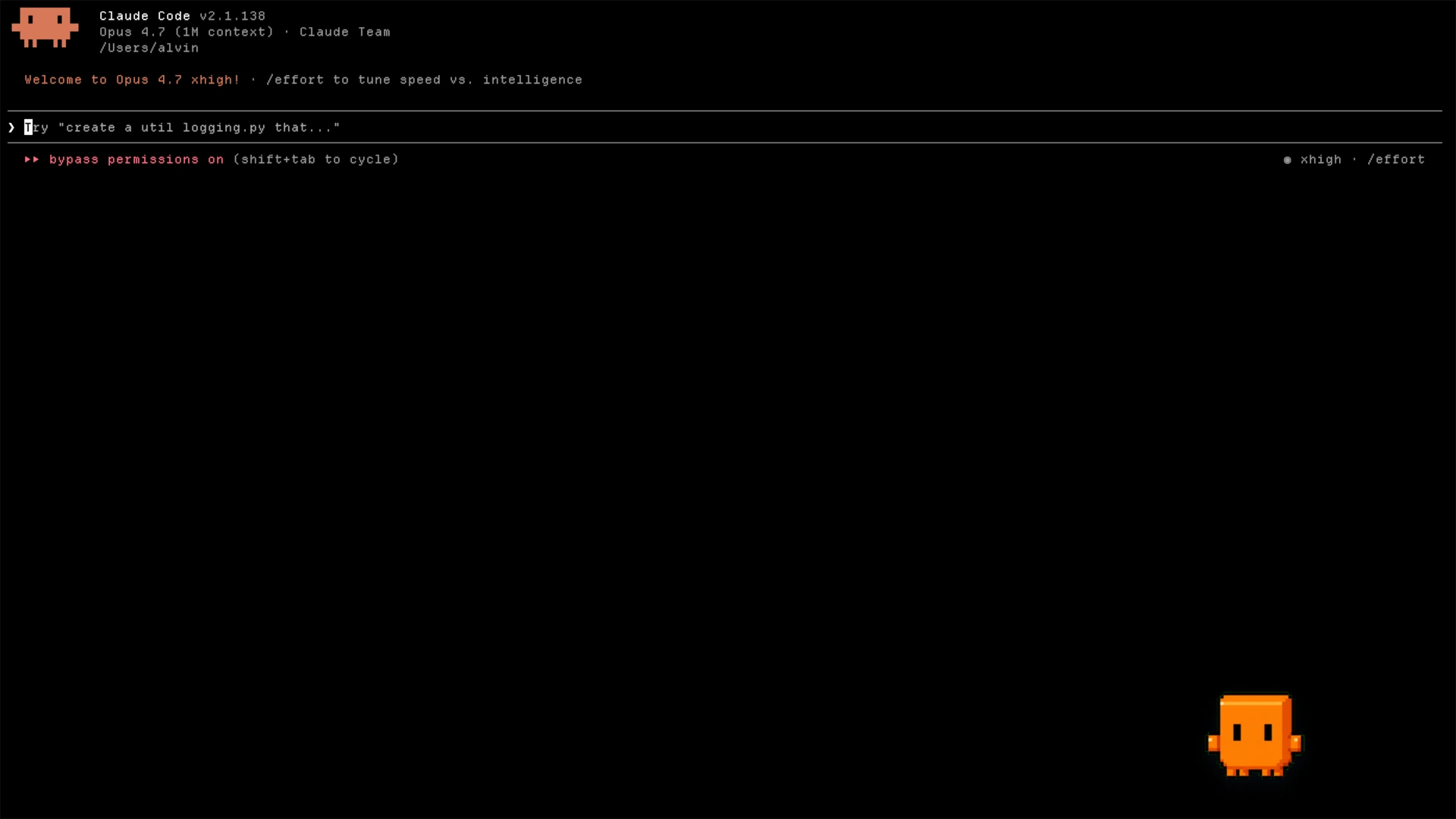
When working with Claude Code in your terminal, OpenPets receives stdio tool invocations whenever Claude initiates actions, inspects files, or encounters build errors.
How Claude Communicates with OpenPets
- 1. MCP Server Discovery: Claude reads your MCP configuration file and connects to
openpets mcp serveover stdio. - 2. Tool Registration: OpenPets registers
openpets_set_state,openpets_say, andopenpets_list_petstools. - 3. Lifecycle Events: As Claude executes bash commands or reads files, it calls
openpets_set_state(state="running")orreview. - 4. Desktop Animation: The OpenPets desktop app instantly switches sprite animation states and displays optional speech bubbles.
Visual Vocabulary
Core Named Pet States (waiting, running, review, failed)
OpenPets defines four official named states. AI agents invoke these states during their execution loop to communicate visual progress:
waitingPatient idle posture or resting bounceSignals to the developer that the agent has finished its previous turn and is waiting for your next instruction or approval.
Agent completes task, pauses for user prompt, or sits idle awaiting next instruction.
await mcp.callTool("openpets_set_state", {
  state: "waiting",
  message: "Ready for next prompt",
});runningActive walking, typing, or action loopIndicates active work in progress. The pet companion walks along active editor borders while terminal commands or tests run.
Agent starts tool execution, file editing, terminal command execution, or code generation.
await mcp.callTool("openpets_set_state", {
  state: "running",
  message: "Executing bun test...",
});reviewFocused inspecting or analytical poseShows that the agent is evaluating code structure or reading documentation before applying changes.
Agent is inspecting diffs, reading AST nodes, analyzing file contents, or running codegraph queries.
await mcp.callTool("openpets_set_state", {
  state: "review",
  message: "Analyzing codegraph callers...",
});failedAlert reaction or error state poseInstantly alerts you that an automated command or test suite failed, giving visual feedback even if your terminal is minimized.
Build failure, non-zero command exit code, test failure, or syntax validation error.
await mcp.callTool("openpets_set_state", {
  state: "failed",
  message: "Tests failed with exit code 1",
});
Quick Setup: Standard MCP Configuration
Add the following entry to your AI client's MCP configuration file (e.g. claude_desktop_config.json, .mcp.json, or Cursor settings):
{
  "mcpServers": {
    "openpets": {
      "command": "openpets",
      "args": ["mcp", "serve"]
    }
  }
}
Actionable Tool Integration Guides
Select your development environment below for dedicated step-by-step integration guides:
Claude Code & Desktop
Connect Claude via official OpenPets MCP stdio tools.
Claude invokes stdio tool commands like `openpets_set_state` to show active status while writing code or running tests.
OpenCode
Use the OpenPets plugin for OpenCode for live agent reactions.
Subscribes to session events and triggers companion animations as files are saved and commands execute.
Cursor
Configure project-level MCP tools in Cursor for companion reactions.
Allows Cursor AI assistant to trigger pet states directly during code generation and review.
MCP Standard Server
Connect any MCP-compatible AI client using standard stdio JSON-RPC.
Exposes `openpets_set_state`, `openpets_say`, and `openpets_list_pets` tools over standard stdin/stdout channels.
OpenPets CLI
Send pet reactions from shell scripts, git hooks, and terminal commands.
Run simple shell commands like `openpets set-state running` from build scripts, CI pipelines, or git hooks.